A timesheet approval is a second person looking at the week before it counts. It catches the wrong client, the missing day and the vague description while everyone still remembers the week. This page describes what Jasper HQ does at each step, in the order a timesheet moves, and the settings an admin controls.
1. Logging the week

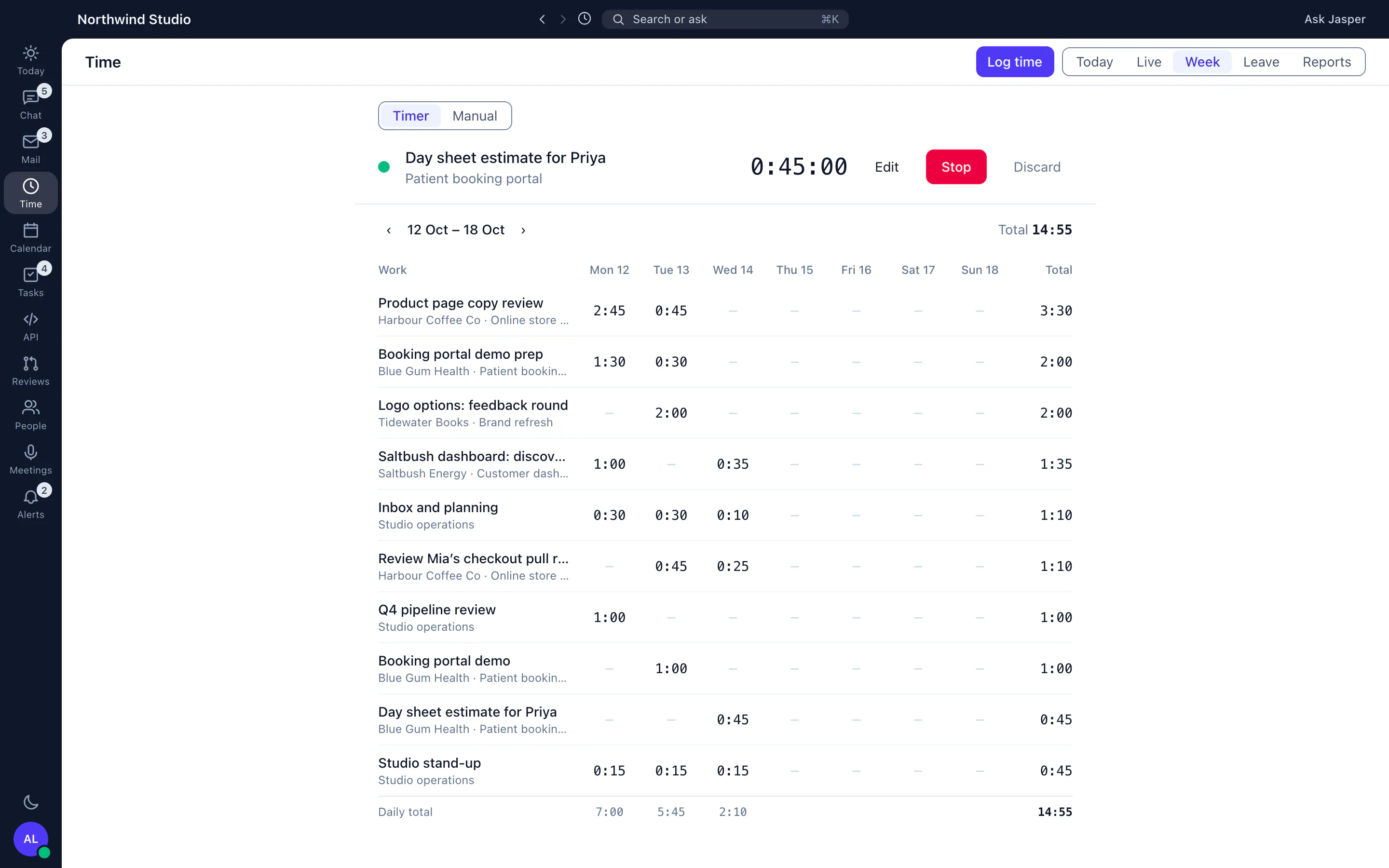
People track time with a timer or by hand, and each person has one timesheet for each period. The period is weekly, fortnightly or monthly, and the organisation chooses it. New workspaces start weekly, with the week beginning on a Monday. Entries that fall inside the period join the timesheet, and its totals update as you add time. Time held for review (see below) does not count toward the total until someone approves it.
2. Submitting
The person submits their own timesheet from the web app or the desktop app, with an optional note for the approver. Nobody else can submit it for them. An admin can require a project on every entry, or a description on every entry, and submission is refused with a message saying how many entries are missing one. Submitting locks the entries, so the week stops moving while it is reviewed.
Approvers are notified that a timesheet is waiting, unless an admin has turned that notification off. By default approval is required. If an admin turns it off, submitting approves the week at once.
3. The approver view
People with the approval permission get an approvals page listing submitted timesheets. They can approve one, reject it, send it back for changes, or approve several together. Two limits apply: you cannot approve your own timesheet, and a timesheet can only be approved or rejected while it is in the submitted state. Each action is recorded with the person, the time, any comment and the total hours at that moment.
4. What happens on rejection
A rejection needs a reason. The person is notified, the entries unlock, and the timesheet can be edited and submitted again. Asking for changes works the same way, with a comment instead of a rejection, and puts the timesheet in a revision requested state. When the person resubmits, it is recorded as a resubmission and the rejection reason is cleared from the sheet, while the history keeps it.
5. Approved, and locked
Approving locks the entries, and by default the whole timesheet locks too. That default is a setting, and an admin can switch it off. While a week is locked its entries cannot be edited. If a correction is needed, a person with the manage permission, usually an admin, unlocks the timesheet, and the unlock is recorded in the same history. The person can then fix the entry and submit again if needed.
Held time and the manual cap
Owners and admins can cap how much manual time a person adds each month. Manual time over the cap is held out of client reports until an owner approves or declines it, and people can ask for more hours. Held time is approved automatically after three working days, counted on Sydney time. Time added to a closed week, saved late or left on a runaway timer is held in the same way.
Settings an admin controls
- Whether approval is required at all.
- The period: weekly, fortnightly or monthly, and the start day of the week.
- Whether a project or a description is required on every entry.
- Whether the week locks after approval.
- Which notifications go out on submission, approval and rejection, and reminders before the deadline.
- Hours thresholds, for example the point after which time counts as overtime.
What it does not do
- Approving does not invoice anything. There is no invoicing in Jasper HQ; export the approved hours to CSV or PDF and invoice in your accounting tool.
- Approval is a permission, held by whoever an admin gives it to. This page does not promise a routing rule that picks an approver for each person.
- Approval needs the Time app. The Free plan includes it for up to 3 people.
See the free time tracker page for what Free covers. For the definition and a checklist of what an approver should look at, read the glossary entry on timesheet approval. The time tracking page has everything else the Time app does.