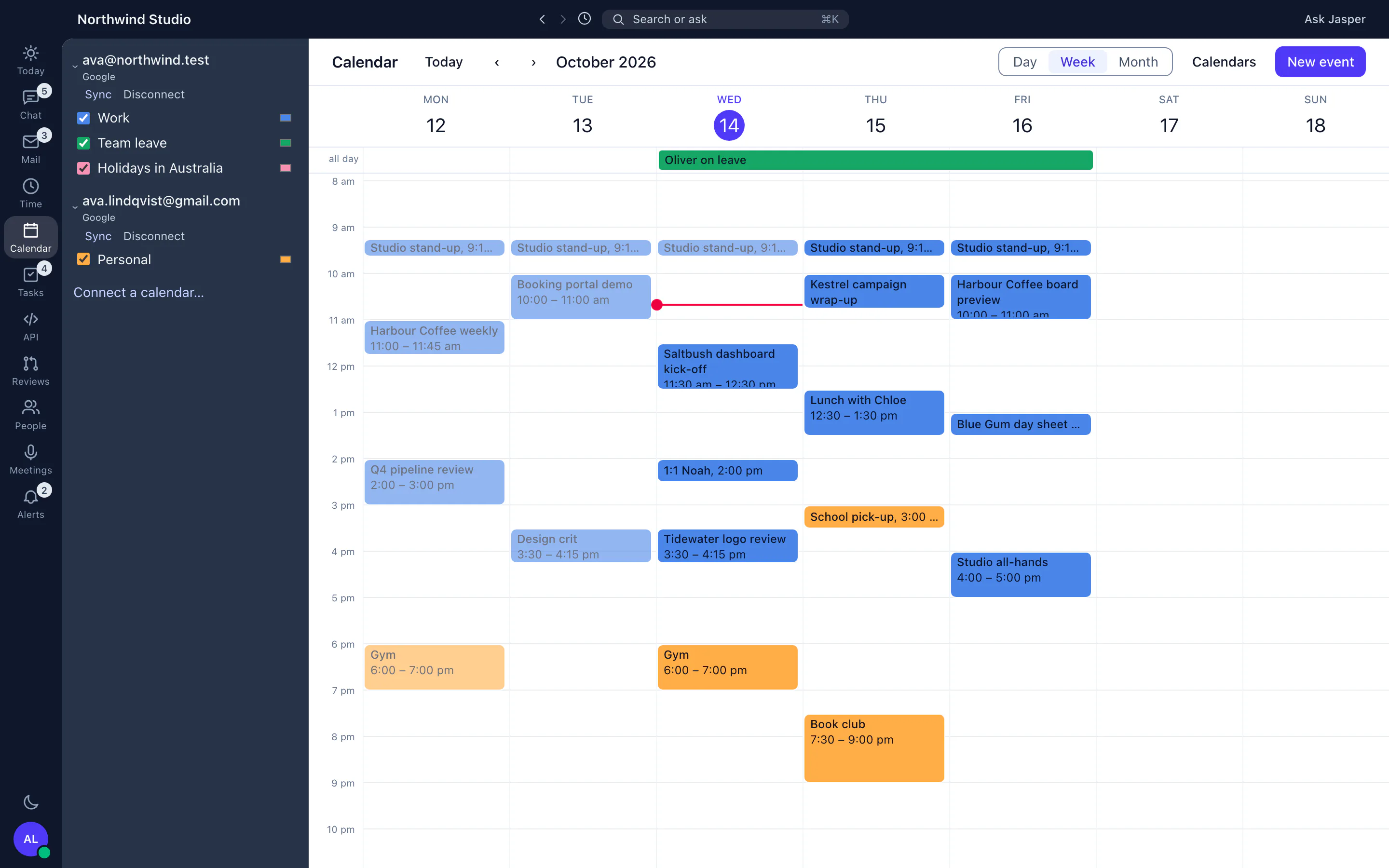
A remote team does not lack tools; it lacks shared context. People work in different time zones, miss each other by a few hours and spend the first part of a day catching up on what happened while they were offline. Jasper puts conversation, calls, the wiki and the question of who is away in one workspace, so catching up takes minutes rather than a meeting.
How remote teams use Jasper
Conversations that wait for you
Public and private channels, direct messages and threads keep a discussion in one place, so someone who starts at 9 in Sydney can read what a colleague in London finished the evening before. Schedule a message to arrive when its reader is at their desk, or set a reminder on a message and snooze it. If a colleague writes in another language, the Translate button on a message uses Claude to translate it. Anyone who misses direct messages, mentions or followed threads for a while gets a missed-activity email, after 15 minutes by default.
Calls when text is not enough
Start a voice or video call with screen sharing for up to 10 people, in the browser or the desktop app. In the desktop app a huddle is a quicker, lighter call for up to 6 people, with audio by default and video if you want it. Huddles can only be started and joined from the desktop app today. Call recording is off by default.
Know who is around
Your status shows online, away, do not disturb or focus, and Jasper sets it automatically from your calendar, approved leave and calls. Approved leave appears on one team timeline, with the public holidays for each office, so a London public holiday does not surprise a Sydney lead. Work schedules show the shifts people have been given. Leave is in the People app and schedules are in the Time app, and the desktop calendar is not open to other companies yet.
Write it down once
The wiki holds processes, client notes and handbooks with search, favourites and version history, so an answer given on a call is findable by the person who was asleep. Pair it with channels: discuss in chat, then record the decision in the wiki and link to it.
On the phone
The Jasper HQ app for Android, with iPhone coming soon, carries team chat, your day, the timer and time-off approvals, so a manager can approve leave from wherever they are.
A worked example
A ten-person studio has designers in Sydney, developers in London and an account lead in New York. Sydney finishes its day with a short written update in the project channel. London reads it, replies in a thread and records a decision in the wiki. New York joins a 30-minute call at the one hour that suits all three, and the team rotates that hour so the same city is not always up late. Our guide to team overlap hours across Sydney, London and New York has the tables for each daylight saving period. Nobody has to be online at once for the work to move, and the call is kept for what text cannot do.
Common mistakes remote teams make
- Treating chat as a meeting. If everyone must reply within minutes, the team is in a meeting with extra steps. Agree what can wait until tomorrow.
- Keeping decisions in threads. Threads scroll away and new starters never see them, so record anything lasting in the wiki.
- Scheduling every call at the same hour. One time zone then carries the inconvenience permanently. Rotate it.
- Forgetting that holidays differ by region. Plan around each office's calendar, not the head office's.
Where Jasper stops for remote teams
- Huddles start from the desktop app only, and calls are peer to peer, so very large meetings are better held in a dedicated meeting tool.
- Chat is for people in your organisation, plus clients and guests you add to specific conversations.