The problem it solves
When time tracking lives in a separate app, people forget to start the timer and fill in the week on Friday afternoon. Jasper keeps the timer next to the chat and mail your team already has open.
For an agency, hours are the product. They decide what goes on the invoice, whether a retainer is on track and whether the team is stretched. When the week is filled in from memory, those numbers stop meaning much.
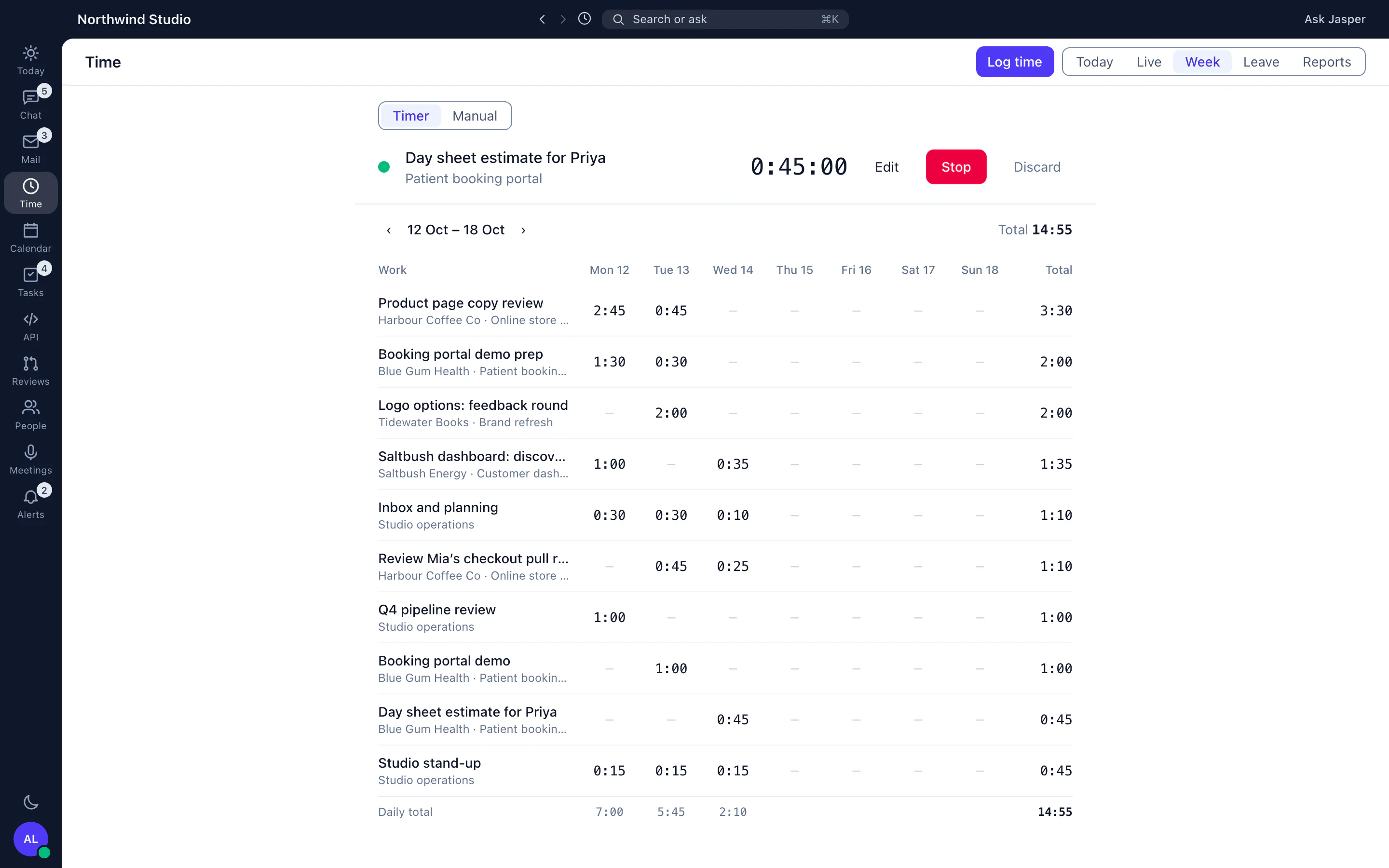
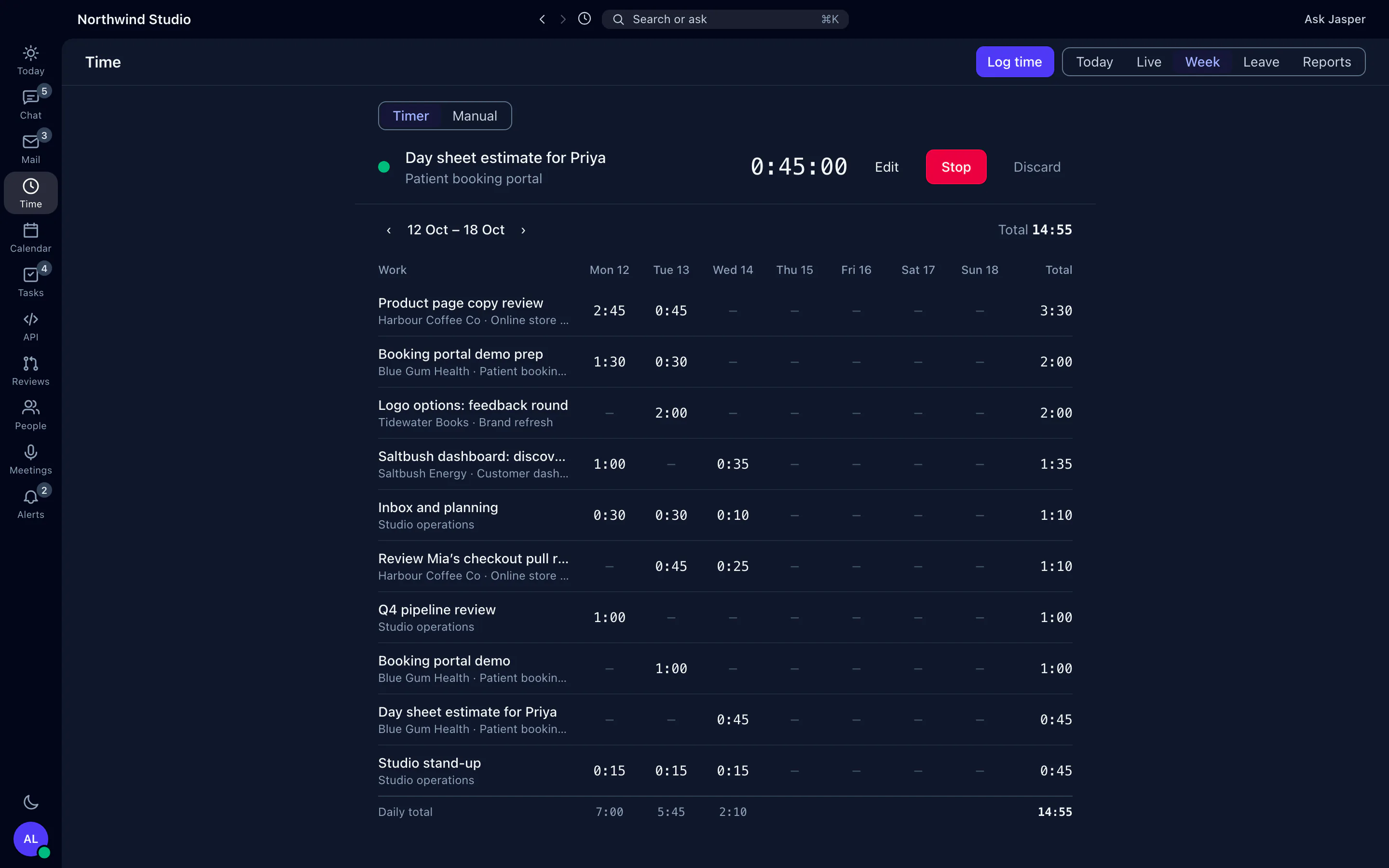
Jasper puts a timer, timesheets and reports in the same workspace as your chat and mail. People log time against a client and, if you like, a project, so the hours add up the way your agency bills.
What it does
Capture the time
Start a timer in the browser or the desktop app, add time by hand, or fill in a week on the bulk entry page. Edit or delete several entries at once. A timer can start at most 10 minutes back; earlier time is added by hand. In the web app each entry needs a client and a description, and the bulk entry page also needs a project. Otherwise a project, task, tags and a linked ClickUp task are optional.
The desktop app adds idle detection. When you step away with a timer running, it asks whether to keep, discard or stop that time. It waits 10 minutes by default, and each person can change that.
The desktop app also has a keyboard shortcut to start and stop the timer, and a weekday reminder at 9:30 am to start it. On macOS a menu-bar tracker shows the running timer; on Windows and Linux the system tray does. You can also start a timer or log time from a client's email in Jasper Mail.
Timesheets and approvals
Choose weekly, fortnightly or monthly periods. People submit their timesheet on the web or in the desktop app. An approver approves it, rejects it with a reason or asks for changes, and an admin can unlock it later. Timesheets can lock once they are approved, and you set the hours after which time counts as overtime. Approve several timesheets at once.
Owners and admins can cap manual time each month. Manual time over the cap is held out of client reports until an owner approves or declines it, and people can ask for more hours. Held time is approved automatically after three working days.
Clients, projects and budgets
Set up clients and projects, and archive them when the work ends. Hourly rates, tasks and tags are added through the API for now. Admins can create projects from ClickUp spaces.
Each project sets whether its time is billable by default, and only owners and admins can change the flag on an entry. People log what they did, and the billing decision stays with owners and admins. People with access to the team view can see who is tracking time right now.
Retainers in the Client Hub
The Client Hub keeps each client's contacts, master service agreement, engagements, retainers and hosting agreements in one profile. A retainer can be monthly or annual, and draws down from the time logged on the projects you link to it.
Monthly retainers use the oldest hours first, keep a month-by-month ledger and warn before hours expire. An admin decides whether to forfeit expired hours, and can pause, resume or close out a retainer. Annual retainers show their burndown and pace. Money values are shown only to people allowed to see commercial figures.
Reports and exports
Report on hours by client, project or person, as a summary or in detail, with filters. People with billing access also see billable amounts by client and by project on screen. Export to CSV, or to PDF for up to 1,200 entries. The CSV holds the date, person, client, project, description, start and end times, hours, a billable yes or no column, the ClickUp task link and tags, but not rates or amounts.
Leave and public holidays
Where the leave policy or public holiday is set up for it, approved leave and public holidays become time entries automatically, so a week with a day off isn't short.
How agencies use it
From timer to invoice
Staff track time against the client and project through the week. On Monday the approver approves last week's timesheets, or sends one back with a note. The billing lead filters the report to a client and month, checks billable amounts on screen, exports the hours to CSV and raises the invoice in their accounting tool.
Keeping a retainer on track
An account lead links a client's projects to its monthly retainer. As the team logs time the retainer draws down, and the lead sees a warning before unused hours expire. Our guide to retainers vs projects covers how to set one up, and the project budget and retainer tracker works without Jasper.
Utilisation without a spreadsheet war
The operations manager exports a month of hours by person, with the billable column, and works out utilisation against available hours. Our utilisation guide and utilisation calculator show the sums.
What it doesn't do yet
- No mobile app. The timer is in the browser and the desktop app.
- Idle detection is desktop-only. The browser timer has none.
- Exports hold hours and a billable flag, not rates or amounts. There is no invoicing in Jasper, so invoices are made in your accounting tool.
- No self-serve import of past time from Clockify, Harvest or Toggl. Talk to us about bringing your history across.
- Hours aren't sent to ClickUp's own time tracking. An entry links to a task, and the hours stay in Jasper.
- A project isn't required on the timer or a single entry, only on the bulk entry page. A timesheet setting can require one on every entry, checked when the timesheet is submitted.
- Staff can't mark their own time billable. Only owners and admins can.
- Clients can't log in to see their hours or retainer. There is no client portal yet, so send them a report export.
- The three working days before held manual time is approved automatically are counted on Sydney time.
How it connects
Web: Timer, entries, timesheets, approvals, reports and exports.
Desktop app (macOS, Windows and Linux): Timer with idle detection, a menu-bar tracker on macOS, and the weekly grid.
- ClickUp: link entries to tasks, and create projects from ClickUp spaces (team plans).
- Mail (desktop app): client folders, and logging time or starting a timer from an email.
- Leave: approved leave and public holidays become time entries.
- CSV and PDF exports for your invoicing tool.
- REST API and MCP server: log and edit time from scripts or an AI assistant.
Integration pages: ClickUp, MCP server
Plans
Time tracking, timesheets and the Client Hub are on team plans. See pricing or talk to us.