Moving from Krisp to the Jasper recorder
Jasper's desktop recorder can take over Krisp's note-taking for online meetings. It records on each person's computer with no bot, and an owner or admin switches it on. Krisp's meetings reach Jasper by webhook from the day you connect it, and past meetings stay in Krisp. Jasper does not replace Krisp's noise cancellation across every app.
Where this stands
Both the Krisp connection and the recorder are switched on by an owner or admin in Settings, then Features. Krisp cannot be switched on until a webhook secret exists. Questions before you start? Contact us.
What moves and what stays
What moves
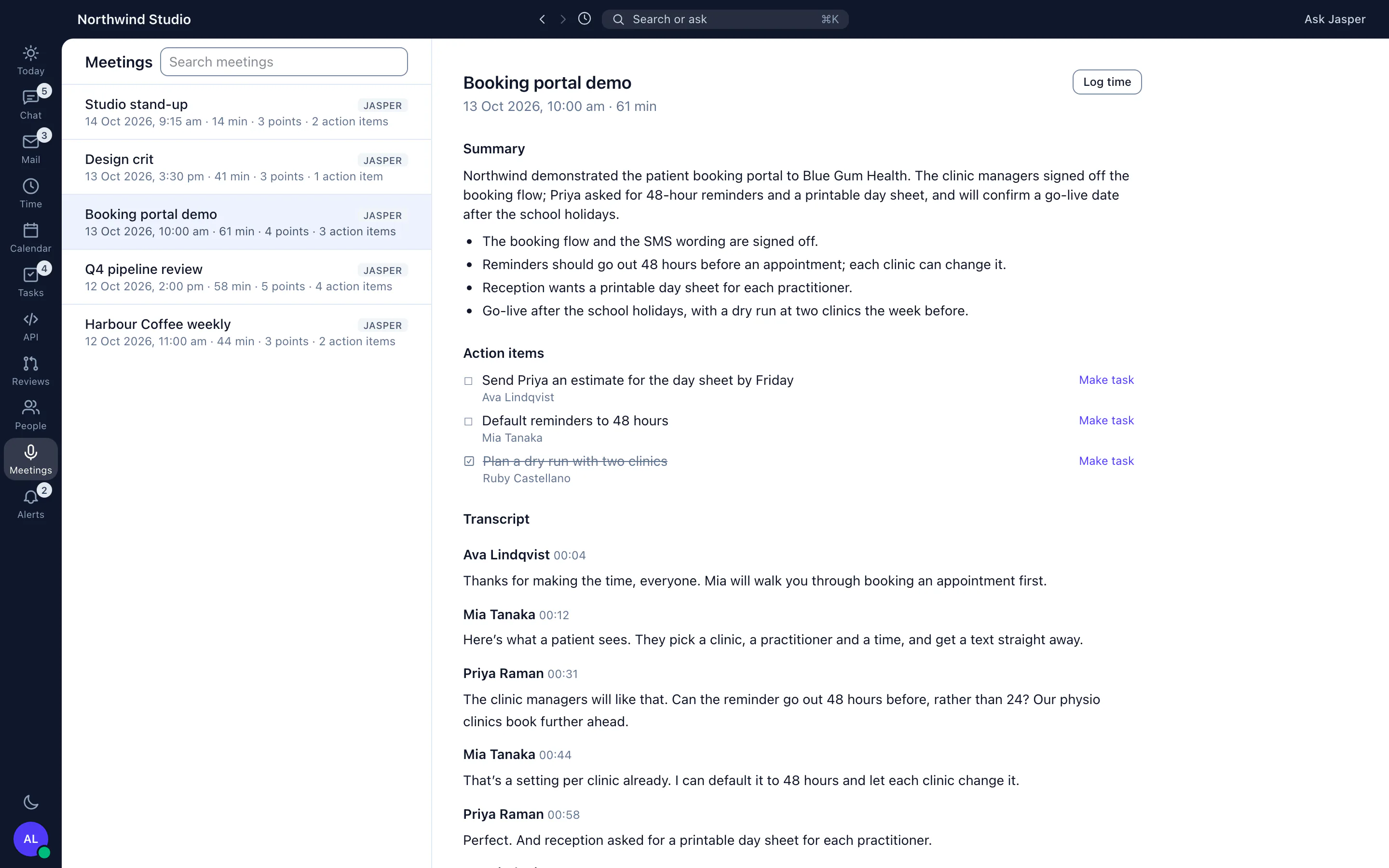
- New Krisp meetings, with their transcript, key points, action items and outline, arrive in Meetings in the desktop app with a Krisp badge. Jasper writes its own summary and notes for them.
- Each person records their next meetings with Jasper instead: Record this meeting on a calendar event, from Meetings or from the menu bar, or let Jasper offer when Zoom, Teams, Webex, Slack or a browser starts using the microphone.
- Each recording gets a transcript, a summary, key points and action items, and each action item can become a ClickUp task (ClickUp is in the Time app).
What stays behind
- Meetings Krisp recorded before you connected it. Jasper receives meetings as Krisp sends them and does not pull your history.
- Krisp's noise cancellation inside the conferencing apps, and its phone apps for online calls.
- Your Krisp plan. You cancel it with Krisp when you are ready.
- Transcription in more than English, Tagalog, Persian and Arabic.
How the connection works
- An owner or admin opens Settings, then Krisp, and generates a webhook secret. Jasper shows the address and the secret once.
- In Krisp, add that address as a webhook with the secret as a bearer token or an X-Webhook-Secret header, then switch on Krisp in Settings, then Features.
- Anyone who can open Meetings sees only the Krisp meetings they recorded or were on.
A realistic order, running both side by side
-
Week 1
An owner or admin generates the Krisp webhook secret, adds the address in Krisp and switches on Krisp. Switch on Meeting recorder in Settings, then Features, in the same sitting.
-
Week 1
Everyone installs the Jasper desktop app, version 2.22.0 or later. On a Mac, allow Jasper to record system audio when macOS asks.
-
Week 1 to 2
Each person chooses Ask me from the menu-bar icon, and tells guests from outside your organisation before the meeting. Jasper asks you to confirm this when the calendar event lists an outside guest.
-
Week 2 to 4
Keep Krisp running. Owners and admins open the Krisp switch-off page, which counts each person's Krisp and Jasper meetings without showing the meetings. Jasper also nudges, on Mondays and at most once a month each, people with several Krisp meetings and no Jasper recording.
-
Week 5
When each person who used Krisp is recording in Jasper, switch Krisp off in Settings, then Features, and cancel the Krisp plan with Krisp.
Start your move
Start free and invite your team, or contact us with a question first.
Questions people ask
Can I import my old Krisp meetings?
No. Krisp sends each meeting to Jasper as it finishes, once the webhook is connected. Meetings from before that stay in Krisp.
Does Jasper tell the other people that it is recording?
No. It records on your computer and shows a red bar to you. If the calendar event lists a guest from outside your organisation, Jasper asks you to confirm you have told them. Recording laws differ by place, and telling people is up to you. Our Krisp comparison covers this in more detail.
Does the recorder join as a bot?
No. It records your microphone and the other people's sound from your computer.
Does it work on a phone?
The Jasper HQ phone app records meetings held in person. Online meetings are recorded from the desktop app.
More from Jasper
Krisp is a trademark of its owner, used here only to identify the product you are moving from. Jasper HQ is a team workspace built by Shakewell. Jasper HQ is not affiliated with Jasper AI.