An agency sells hours, so the question behind every time tracker is whether the hours people log end up where the money is decided: on the right client, against the right project, approved before anyone invoices. Most trackers answer the first half. This page covers how an agency uses Jasper HQ for the whole path, from the timer to the retainer report, and where you will still need another tool.
From timer to approved hours
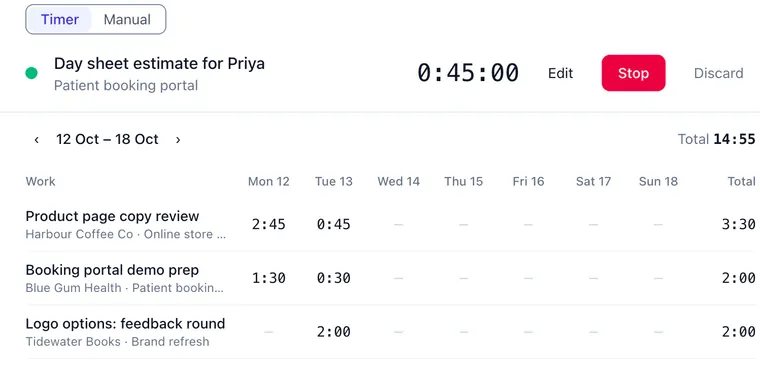
People start a timer in the browser or the desktop app, or add time by hand. In the web app every entry takes a client and a description, so the hours already sit under the account they belong to. A project, a task, tags and a linked ClickUp task are optional. If someone forgets, a timer can start up to 10 minutes back, and anything earlier is added as a manual entry.
Each person submits a weekly timesheet. By default an approver has to approve it, and approving locks the week's entries, so the hours you report on in March are the hours you approved in March. An approver can also reject a timesheet with a reason or ask for changes, and the person fixes it and submits again. Approvers cannot approve their own timesheet. The timesheets with approvals page walks through each step.
Billable and non-billable hours
Every project says whether its time is billable by default, and each entry carries a billable flag. Only owners and admins can change the flag on an entry, so the billing decision does not drift with whoever logs the time. Pitches, internal meetings and studio admin go on internal projects, which keeps the non-billable share visible. The billable vs non-billable guide has a decision table for the grey areas, and the utilisation guide shows what to do with the split.
Retainers that draw down
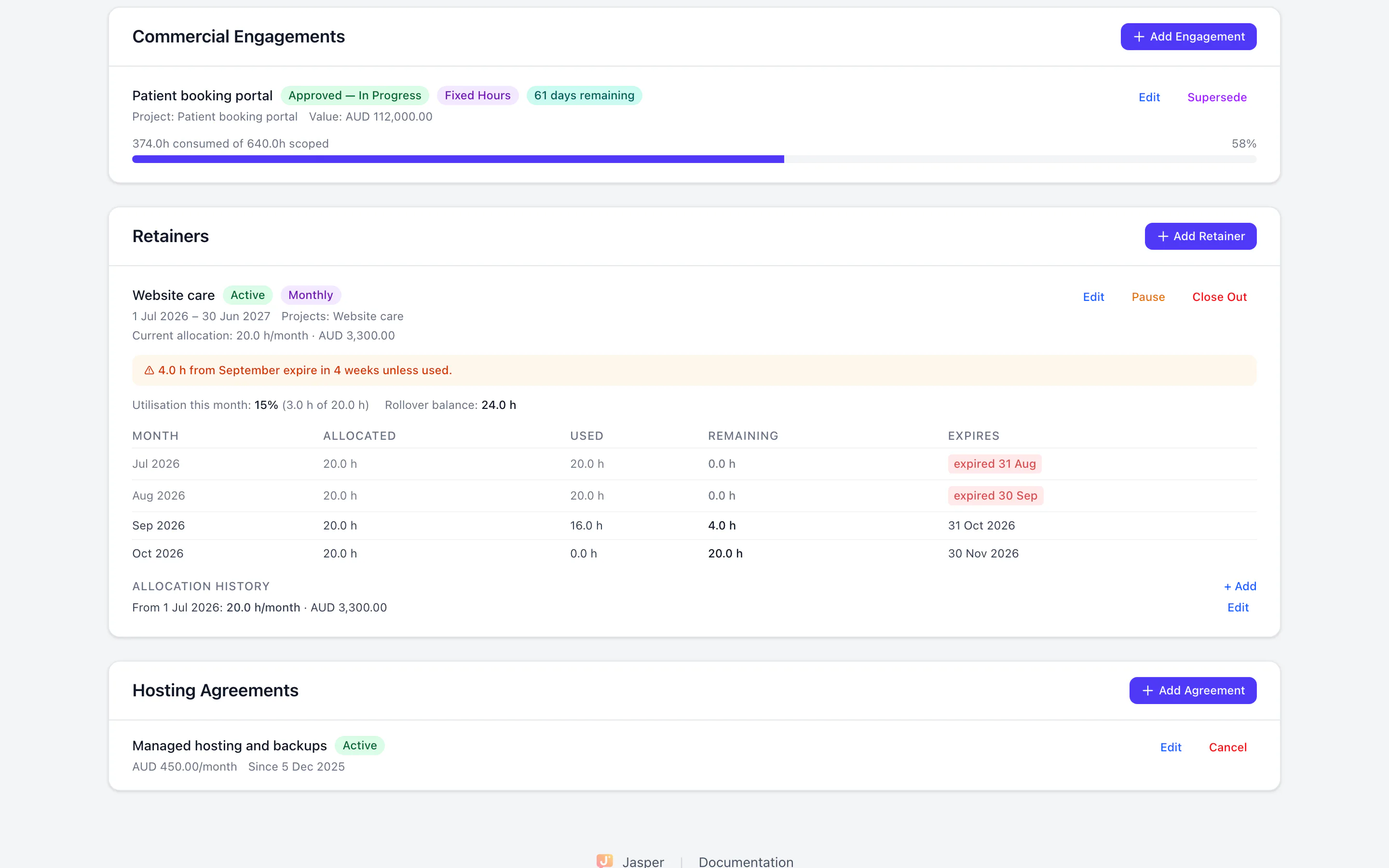
The Client Hub keeps each client's contacts, agreements, engagements and retainers in one profile. A retainer is monthly or annual, and you link it to the projects whose time should count against it. As the team logs hours the retainer draws down. Monthly retainers keep a ledger and warn before unused hours expire, and annual ones show a progress bar and pace. Money values show only to people allowed to see commercial figures. The Client Hub is in the Time app.
Reports your billing lead can use
Reports group hours by client, project or person, as a summary or in detail, with filters. People with billing access also see billable amounts by client and project on screen. Export to CSV, or to PDF for up to 1,200 entries. The exports hold hours and a billable column, not rates or amounts, because the invoice is raised elsewhere. The agency rate calculator and the agency billable timesheet template help if you are still pricing the work.
Desktop and phone
The desktop app runs on macOS, Windows and Linux. It adds idle detection, which asks whether to keep, discard or stop time when you step away, and a keyboard shortcut for the timer. The desktop and Android apps keep the timer and new entries while you are offline and send them when you reconnect. A timer saved late is held for review. The phone app is on Android on Google Play, with no iPhone app on the App Store yet. It has the timer, time logging, a week view and timesheet submission.
Leave and capacity in the same place
Where leave is switched on, approved leave and public holidays become time entries, so a week with a day off is not short. Leave is in the People app, not the Time app. See time tracking and leave in one place.
What it does not do
- No invoicing and no expenses. Export the hours and invoice in your accounting tool.
- Time entries can be imported from a Clockify Detailed report CSV (the import guide), but not from other trackers. Keep their exports for past hours.
- No kiosk or shared-device clock-in.
- No screenshots and no tracking of which apps or websites people use. The desktop app only checks whether you are idle.
- Staff cannot mark their own time billable. Only owners and admins can.
- Hours are not pushed into ClickUp's own time tracking. An entry links to a task and the hours stay in Jasper.
Comparing trackers? See how Jasper HQ compares with Clockify, Harvest, Toggl and others, including where they are the better fit. The time tracking product page has the full feature list.